Cursor
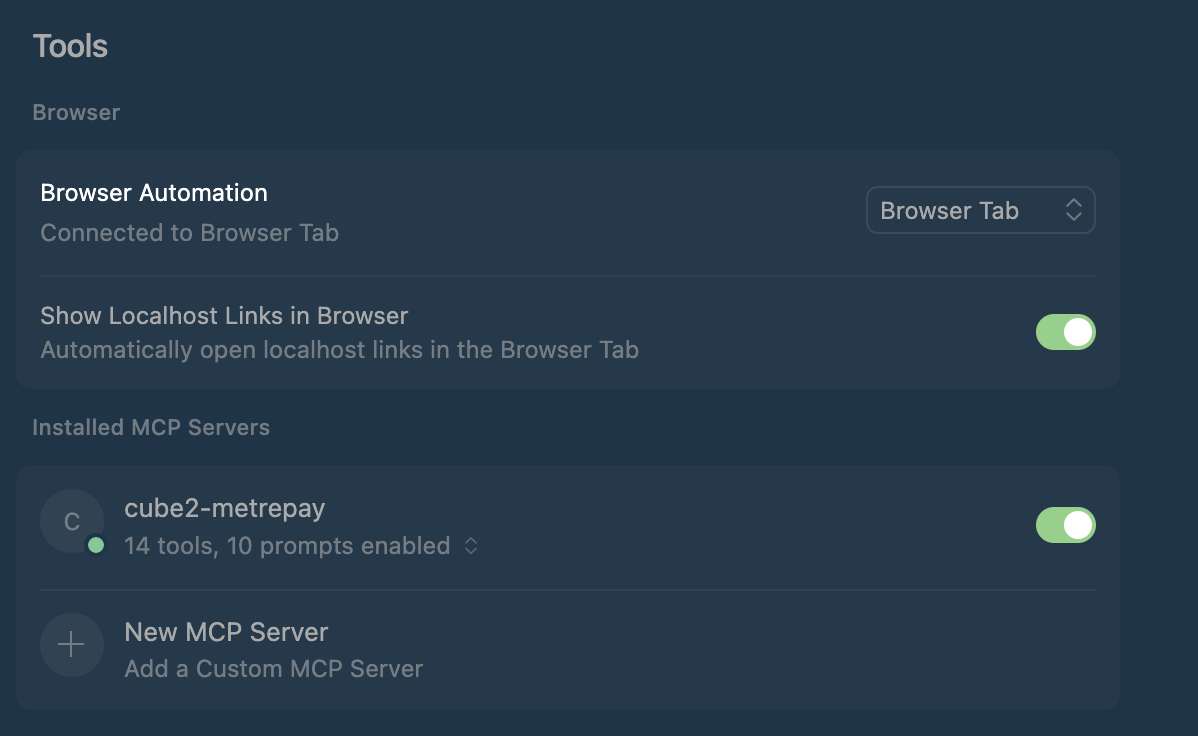
- Open Cursor settings (
Cmd/Ctrl + ,) - Search for "MCP"
- Add your server configuration
You can edit the cursor config in file cursor.mcp.json to add the remote MetrePay Cube2 MCP server:
{
  "mcpServers": {
    "cube2-metrepay": {
      "url": "https://metrepay-mcp.palomonte.ai/mcp",
      "headers": {}
    }
  }
}
How It Works
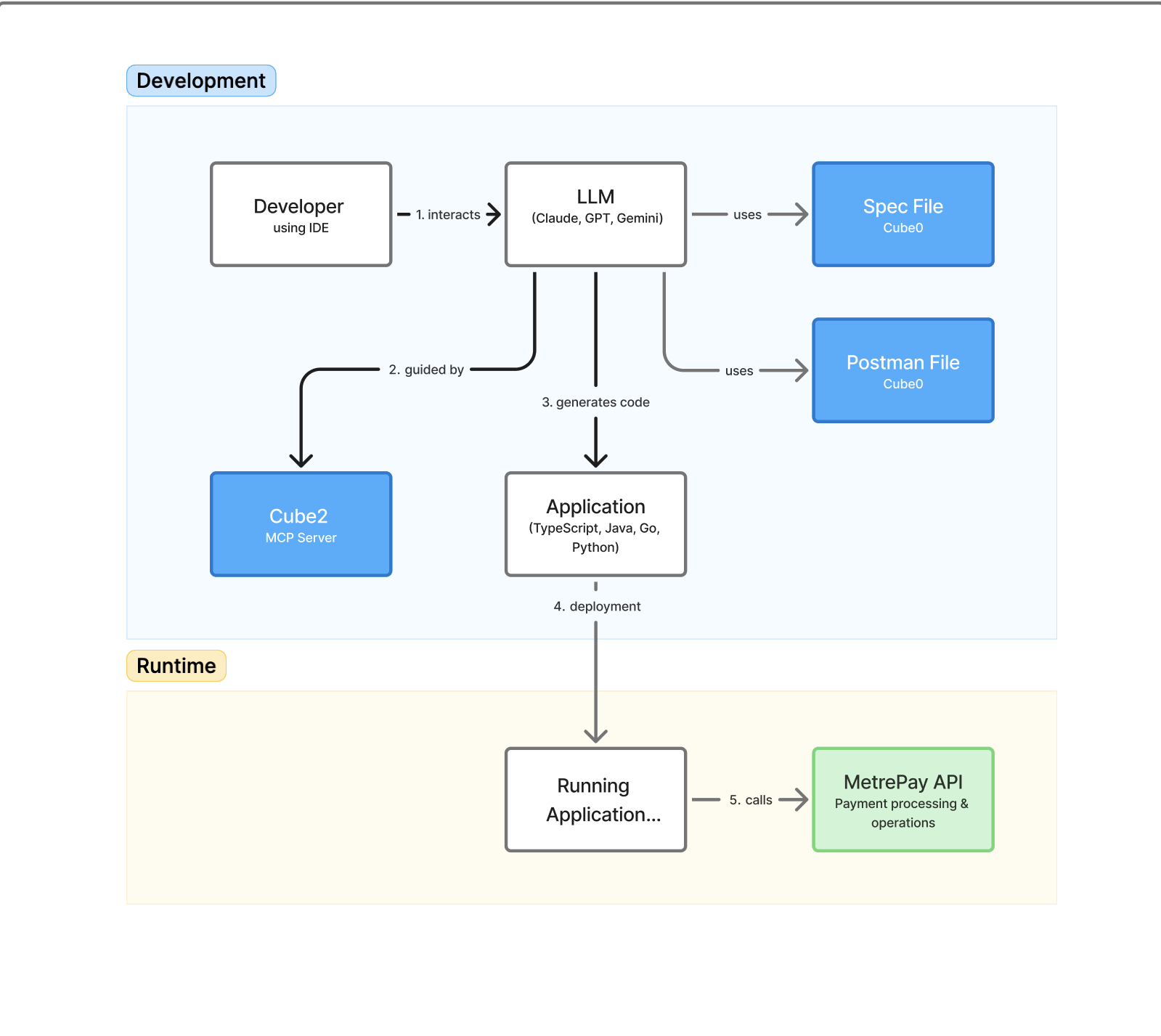
During development, you work in your IDE (Cursor) and talk to the LLM. The LLM:
-
Uses the spec file and Postman collection provided by Cube0 to understand MetrePay's API and data model.
-
Calls the Cube2 MCP server to resolve mappings, field requirements, and example payloads.
-
Generates application code (TypeScript, Java, Go, Python, etc.) that connects to the MetrePay API.
Once the code is deployed, in runtime your running application calls the MetrePay API directly for payment link creation and subscription operations. Cube2 is only needed during development time to speed up and standardize how integrations are built.